 TS-AIoT
Software
Choose a product to view its overview and download.
Drivers
USB-to-UART drivers required for device connection and flashing.

TS-LINK is Tritonnet's device management software that unifies MCU devices, COM-port communication, and WiFi into a single platform. Connect a product over USB and it automatically detects the new port, identifies the TS-Link32 device, and handles everything from firmware flashing to product registration, configuration, and real-time data ingestion over WiFi. Registered products link to your TS-AIoT account and can be monitored in real time on the web platform as well. You can also work with devices offline without signing in, and it is the first software to install when getting started with TS-AIoT.
- ✓COM-port MCU device connection and management (auto-detect or manual port select)
- ✓Firmware OTA flashing
- ✓Product registration and NVS/WiFi configuration
- ✓Real-time data ingestion over WiFi
- ✓TS-AIoT real-time monitoring dashboard
- ✓Online and offline modes
- ✓7 languages (KR/EN/JP/DE/FR/ES/IT)
TS·LINK
Windows 10 or later · 64-bit. Server features require an internet connection.
Download Guide docs
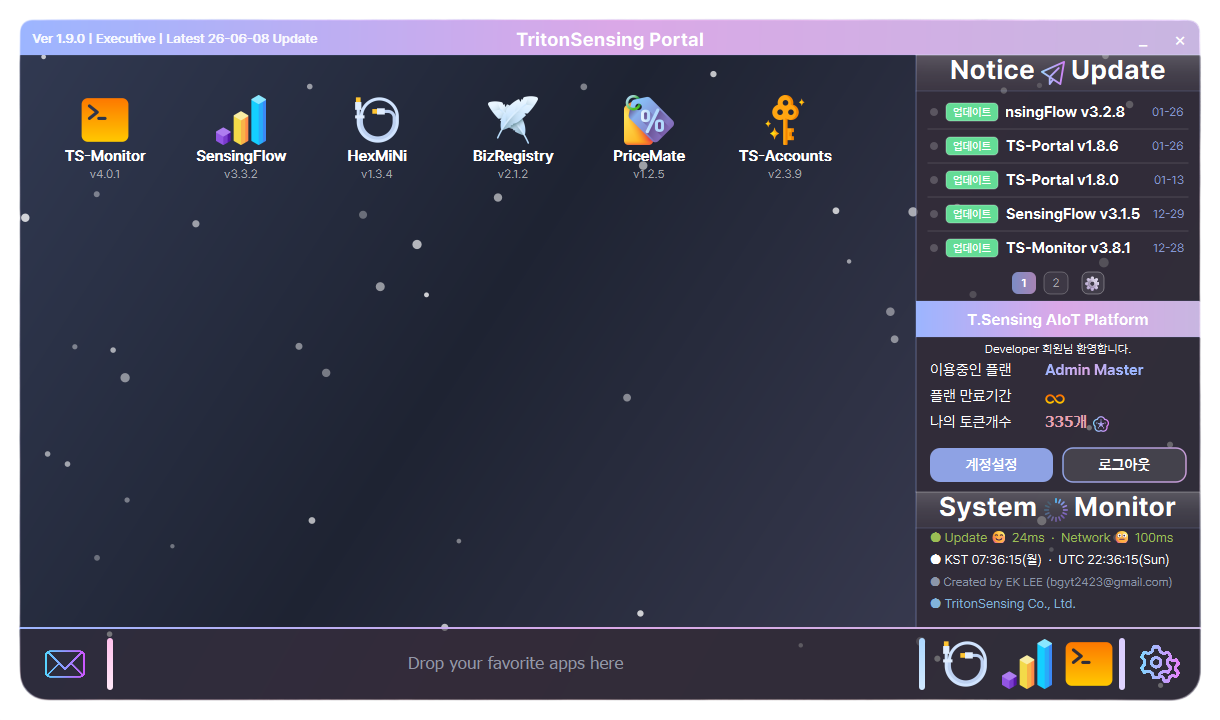
TS-Portal is a desktop launcher that runs TritonSensing's utility apps in a single window. The available apps are configured by your account role, and when a new version is released you can review it in the notice and update feed and update it in place automatically. It also shows your signed-in account's plan and status alongside system status, and you can pin frequently used apps to the dock for quick access. The customer configuration includes TS-Monitor, SensingFlow, and HexMiNi.
Included apps
- ✓Run multiple apps from one launcher
- ✓Per-app auto-updates (notice and update feed)
- ✓Role-based app configuration
- ✓Signed-in account, plan, and status display
- ✓Quick launch with a favorites dock
- ✓Real-time system status monitor
Overview
The CP210x USB-UART driver is the essential communication driver that TritonSensing desktop software needs to talk to your device. It provides stable USB-to-UART communication between the PC and the device so Windows recognizes it as a valid COM port. TritonSensing devices use Silicon Labs CP210x bridge chips (CP2102, CP2104, CP2105, CP2108); without this driver Windows may fail to create a COM port and the software cannot detect the device.
Required for
- TS-LINK
- TS-Monitor
- SensingFlow
- HexMiNi
- and other TritonSensing AIoT utilities and upcoming releases
Supported systems
- Windows 10 (version 1803 or later)
- Windows 11 (all builds)
- 64-bit systems recommended
Installation
- Download the latest CP210x driver ZIP from this page.
- Extract the ZIP to any folder on your PC.
- Find the silabser.inf file inside the extracted folder.
- Right-click silabser.inf and choose Install.
- Windows installs the required components automatically.
- After installation, reconnect the device over USB.
Verify the installation
In Device Manager → Ports (COM & LPT), if you see “Silicon Labs CP210x USB to UART Bridge” with a new COM port, the driver is installed correctly.
Why this driver is required
- Firmware flashing and bootloader communication
- Real-time sensor data streaming
- Device configuration and sensor calibration
- Diagnostic and development logging
Troubleshooting
- If the device is not recognized, reinstall by repeating the steps above.
- Try a different USB cable or a different USB port.
- Check Device Manager to confirm the COM port appears correctly.
- Restart the PC after installation if needed.
Overview
The CH34x USB-UART driver provides stable serial communication between the PC and TritonSensing devices that use CH340/CH341-based USB bridges. With this driver installed, Windows assigns a COM port to the device and TritonSensing desktop software recognizes it correctly. The latest driver improves COM-port detection speed, firmware-flashing stability, and real-time data logging reliability.
Required for
- TS-LINK
- TS-Monitor
- SensingFlow
- HexMiNi
- and other TritonSensing AIoT utilities and upcoming releases
Supported systems
- Windows 10 (version 1803 or later)
- Windows 11 (all builds)
- 64-bit systems recommended
Installation
- Download the CH34x driver ZIP from this page.
- Extract the ZIP to any folder.
- Find SETUP.EXE (or CH34x_Install.exe) inside the folder.
- Right-click the installer and choose Run as administrator.
- Follow the on-screen steps until installation completes.
- After installation, reconnect the device over USB.
Manual installation (if auto-install fails)
- Extract the ZIP and open Device Manager.
- Find the device marked with ! or shown as an unknown USB device.
- Right-click it and choose Update driver.
- Select Browse my computer for drivers.
- Point to the extracted CH34x driver folder and finish the installation.
Verify the installation
In Device Manager → Ports (COM & LPT), if a new COM port appears, the driver is installed correctly.
When to install
- You get a “device not recognized” error
- No COM port appears
- The connection drops frequently
- Firmware flashing fails
- Serial data is incomplete or corrupted